How to see your total hours played on Steam
How to see Steam hours for one game: open Library, click the game, and read Play Time on its page. For every game at once, the Games page on your Steam Community profile ranks your library by playtime. Steam never adds up your total, so paste your profile URL, username or SteamID into the Steam hours checker below and it does.
The checker returns your total playtime, games owned, played and never played, your 25 most played games, and the last two weeks of activity. Your Game details privacy has to be Public for it to read anything.
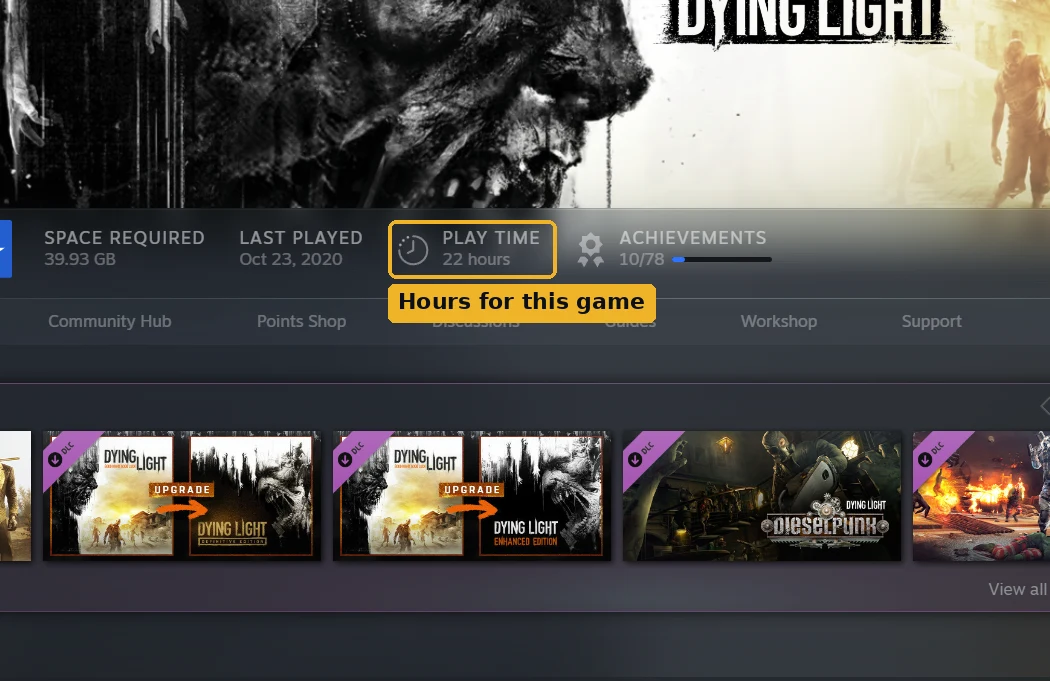
Hours for one game in the Steam client
- Open Steam and click Library.
- Click the game in the left sidebar.
- Read Play Time on the game's page, next to Last Played and Achievements.
Every game ranked by hours played
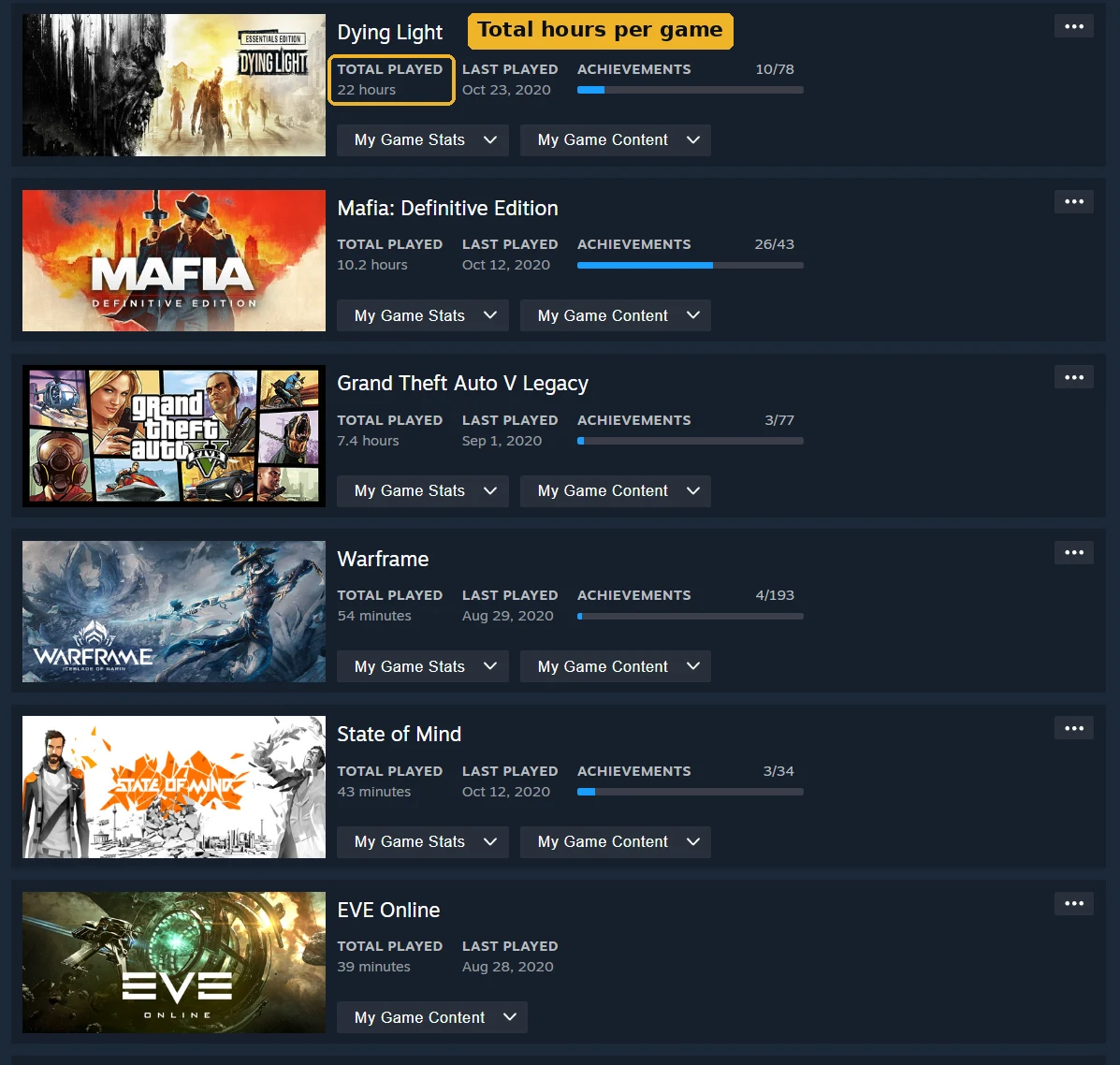
Your Steam Community games page lists Total Played for every game and sorts by playtime:
- Sign in and go to steamcommunity.com/my/games/?tab=all.
- Open the All Games tab.
- Make sure Playtime is selected in the sort options on the right. Name and Achievement Completion are the other two.
Screenshots by Gaming Profile Viewer. Free to use with a link back to this page.
Inside the client, the All Games section of your Library home has a Sort by menu with Hours played. That ranks the grid, while the left sidebar stays alphabetical.
Why your total may look off
The total is your playtime "on record". Offline sessions, idling and non-Steam games can make it lower or higher than you expect; how Steam tracks your playtime explains each case.
How many hours do Steam players actually log?
In a random sample of 263 public Steam accounts taken in October 2026, the median account had logged 105 hours of playtime across its whole game library.
In a random sample of 263 public Steam accounts taken in October 2026, the median account had logged 105 hours of playtime across its whole game library.
https://gamingprofileviewer.com/steam/guides/how-to-see-steam-hours-playedTotal hours logged, by percentile
| Measure | Hours |
|---|---|
| 25th percentile | 10 |
| Medianthe typical account | 105 |
| 75th percentile | 1,203 |
| 90th percentile | 3,741 |
| 99th percentilerests on 3 accounts, treat as rough | 13,598 |
| Meanpulled up by the largest accounts | 1,332 |
| Largest account in the sample | 26,808 |
72 of the 263 accounts (27.4%) have logged more than 1,000 hours. Only 5 (1.9%) have passed 10,000. Across all 10,380 owned games in the sample, 36.6% show zero minutes played and another 14.8% show under an hour.
How the 263 accounts are spread
- 0 to 1067
- 10 to 5042
- 50 to 10019
- 100 to 25028
- 250 to 50012
- 500 to 1,00023
- 1,000 to 2,50028
- 2,500 to 5,00024
- 5,000 to 10,00015
- 10,000+5
Last updated: October 11, 2026.
How we got these numbers. Every Steam account has a numeric ID. We walked that ID space with a fixed stride from a random start, so no account could come up twice. For each ID that was a real account with a public profile, we asked the Steam Web API for its library through GetOwnedGames, which reports the recorded playtime for every game a player owns. We kept one row per account: the number of games, the summed playtime and the year the account was created. No Steam IDs, names or avatars were stored.
What the sample is, and what it is not. This is a random sample of 263 public Steam accounts, not of people who use our tools, so it isn't skewed toward players who look up their own stats. It is full of small and long abandoned accounts, which is why the median account owns only 5 games: read the median as the middle of all public accounts, not of active players. Most profiles can't be read at all: of the 2,794 public profiles we checked, 2,531 hide their game details, so roughly 9 in 10 can't be read by the public or by tools like ours. Steam's own figures are imperfect, because offline sessions do not always sync, nothing before 2009 was recorded, and idling tools inflate some games. Everything above 10,000 hours rests on 5 accounts.
FAQ
Why are my Steam hours blank or hidden? Your Game details are set to Private or Friends Only, or the "Always keep my total playtime private" box is ticked. Both are under Profile > Edit Profile > Privacy Settings (Steam Support), and the public profile guide walks through them.
What does "hrs on record" mean on Steam? It's the playtime Steam has logged for that game on the account. Every Steam review shows the reviewer's figure, the same number you see as Play Time in your Library.
How do I see my most played games on Steam? Run the checker above for your top 25 by hours, or sort your Community Games page by Playtime to rank every game you own.
Can I see my Steam hours for just one year? Valve's yearly recap, Steam Replay, comes out in December; the Steam Replay guide shows where to find it, including past years. Our Steam Replay tool gives you a recap any time of year, built from your lifetime totals and last two weeks.
Does Steam count hours played before 2009? No. Steam's recorded playtime only goes back to early 2009, and earlier play was never added.